
Appearance
Setting Up a Schedule
Each shipping method has its own schedule. Go to Delivery Slots → Schedules to see them all.
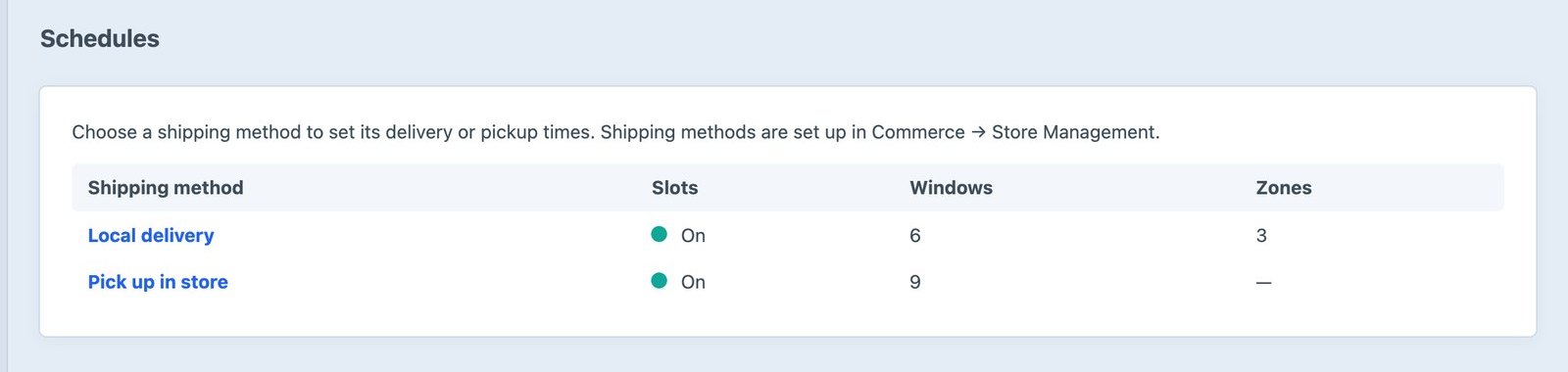
Click a shipping method to edit its schedule. Shipping methods themselves are created in Commerce → Store Management → Shipping Methods.
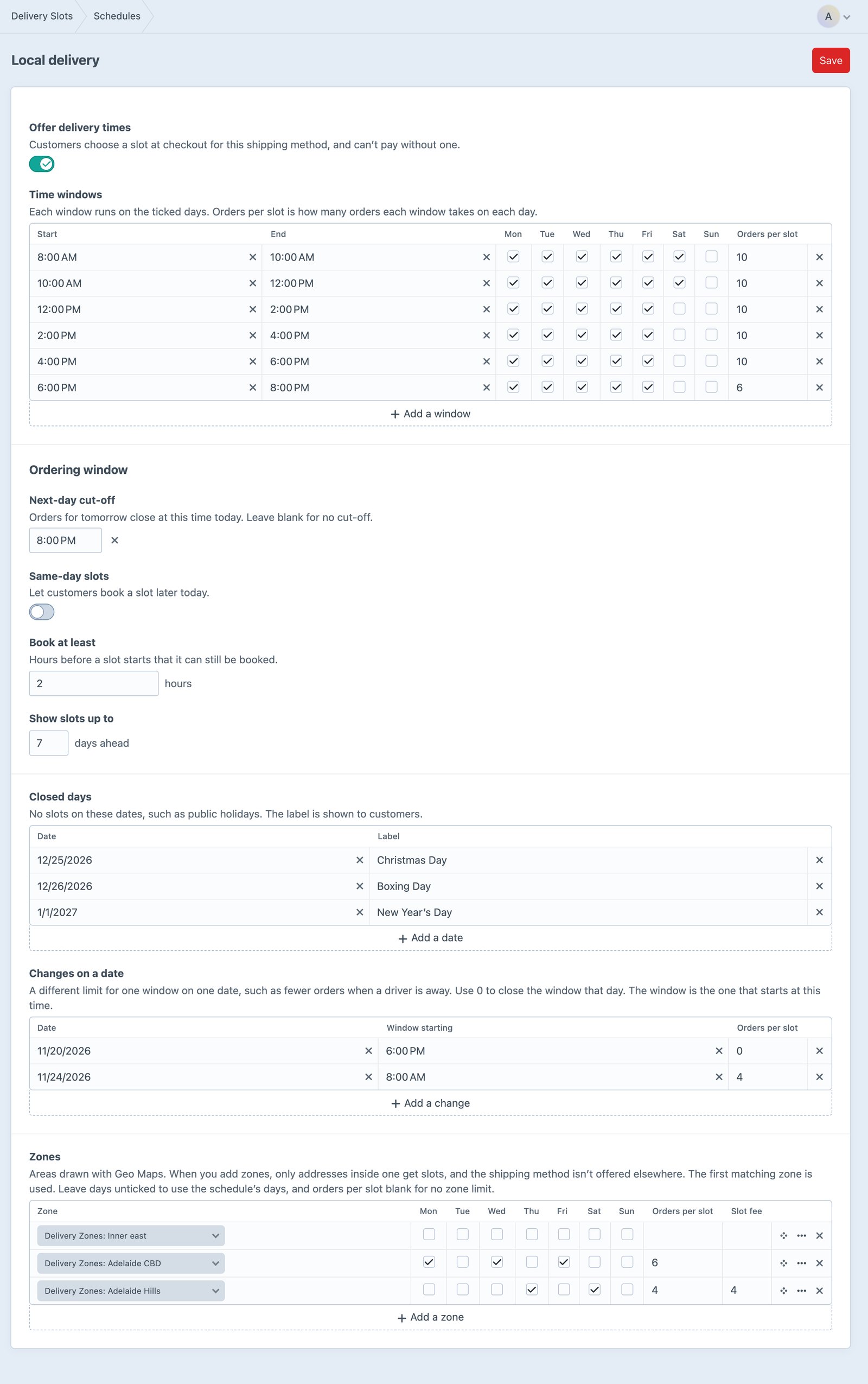
Offer delivery times
Turn this on for customers to choose a slot for the method. While it’s on, customers can’t pay for an order with this method until they’ve chosen one. Turn it off to stop offering slots without losing the schedule.
Time windows
Each row is a window, such as 8–10am, that runs on the ticked days.
| Column | Description |
|---|---|
| Start, End | The window’s times, in the site’s time zone |
| Mon … Sun | The days it runs |
| Orders per slot | How many orders the window takes on each day. 10 means ten orders on Monday, ten on Tuesday, and so on |
To have shorter Saturdays, untick Saturday on the afternoon windows. For a window that takes more orders on one day, add a second row with the same times for that day.
Windows don’t have to be the same length. Pickup is often hourly, and delivery two- or four-hourly.
Ordering window
| Setting | Description |
|---|---|
| Next-day cut-off | Orders for tomorrow close at this time today. With 8:00 PM, an order placed at 9pm on Monday can’t choose Tuesday. Leave it blank for no cut-off |
| Same-day slots | Let customers choose a slot later today. Off by default |
| Book at least | How many hours before a slot starts it can still be chosen. With 2 hours, the 2–4pm slot closes at noon |
| Show slots up to | How many days ahead the picker shows |
Closed days
Dates with no slots, such as public holidays or a stocktake. The label is shown to customers in place of the slots, such as “Christmas Day”. Without a label, the day shows as “Closed”.
Weekdays with no windows, such as Sunday above, are closed every week; you don’t need to add them.
Changes on a date
A different limit for one window on one date, without changing the weekly schedule. Use it when a driver is away (fewer orders), for a big catering order (more), or to close one window for the day (0).
| Column | Description |
|---|---|
| Date | The day |
| Window starting | The start time of the window to change, such as 8:00 AM |
| Orders per slot | The limit for that window on that day. 0 closes it |
To close the whole day, use Closed days instead.
Zones
With Geo Maps installed, add the areas you deliver to, and give each its own days, order limit and fee. See Delivery Zones.
Pickup
Pickup works the same way: create a Pick up in store shipping method in Commerce, with a rule that matches every order, then give it a schedule. Turn on Same-day slots and set Book at least to 1 hour for “ready in an hour”. See the click and collect example.
Several stores
On a multi-store Commerce site, the Schedules page lists each store’s shipping methods separately, and each method has its own schedule.