
Appearance
The Run Sheet
Delivery Slots → Run sheet shows a day’s booked orders, grouped by slot.
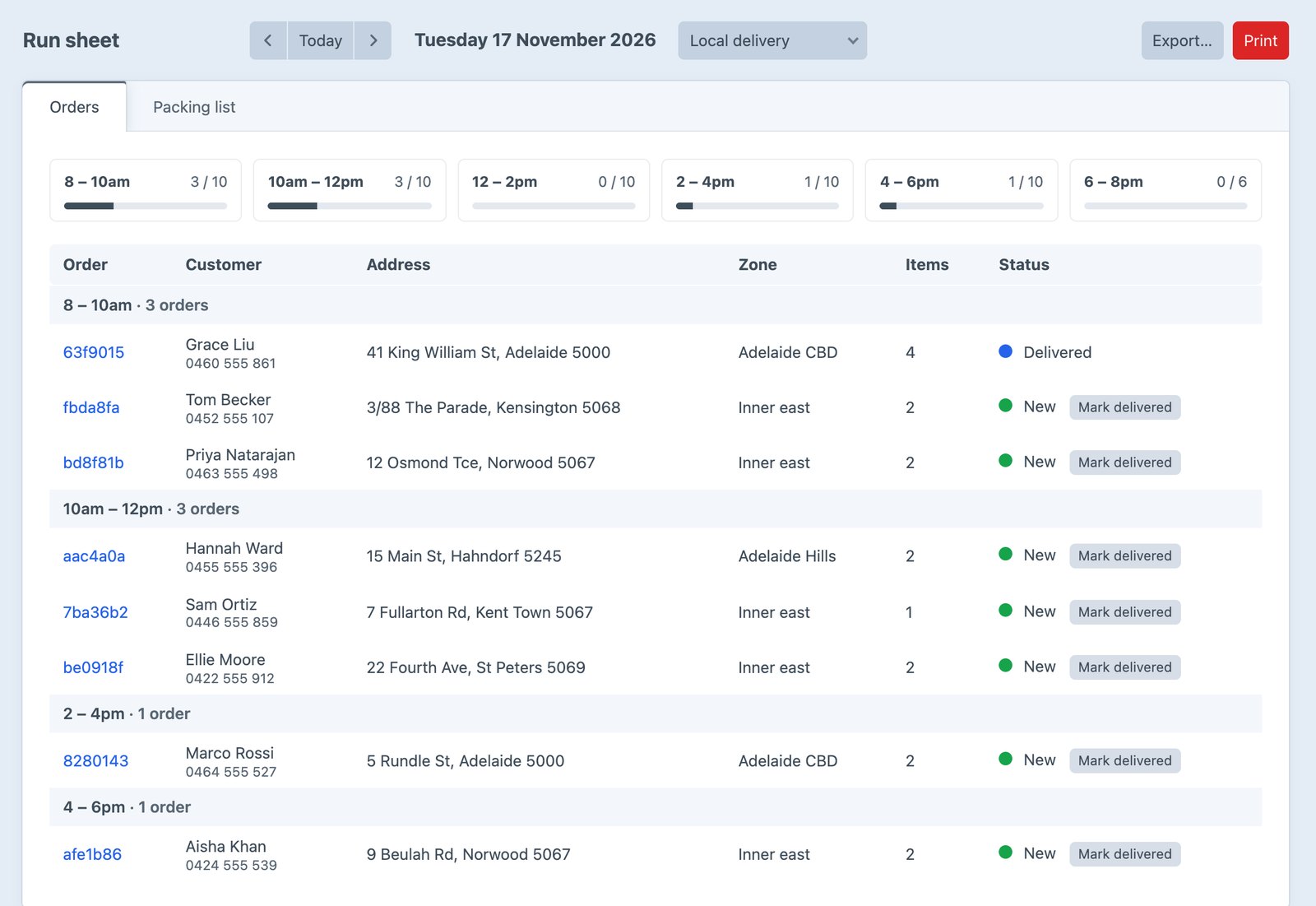
- The date starts at today. Use the arrows to move a day, or Today to come back.
- The shipping method menu shows one method, or all of them.
- The slot cards show how many orders each window has, out of its limit, when one method is shown.
- The orders are grouped by slot, then sorted by zone and suburb, which is roughly the order a driver visits them. Click an order number to open it.
Only completed orders are listed. Carts that are holding a slot aren’t, though they count towards how full a slot is at checkout.
Columns
| Column | Shows |
|---|---|
| Order | The order’s reference, or its short number |
| Customer | The shipping address’s name, and its phone number. Without a Phone field on addresses, the customer’s email |
| Address | The shipping address |
| Zone | The zone the address is in |
| Items | How many items the order has |
| Note | An order field you choose with noteField in the config file, such as delivery instructions |
To show phone numbers, add a Phone field (handle phone) to addresses under Settings → Addresses and ask for it at checkout.
Print
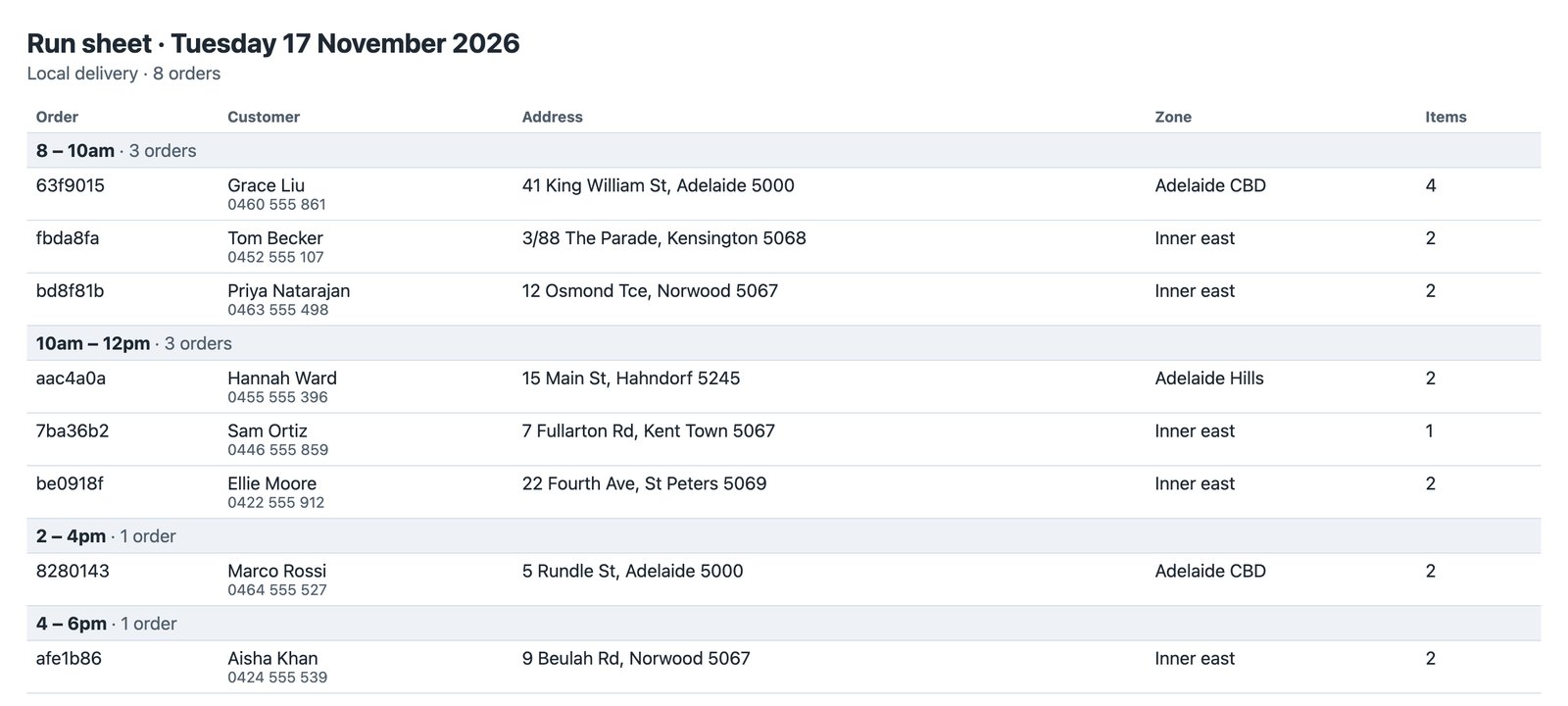
Print opens a plain page for the day and prints it, starting each slot on a new page so each driver gets their own.
Marking orders delivered
Each order has a Status column with its Commerce order status. Mark delivered sets the order to your Delivered status, so the team can tick orders off as drivers report back, and the order’s status history shows who did it.
The button shows when:
- your store has an order status with the handle
delivered(create it in Commerce → Store Management → Order Statuses), or the handle you set withdeliveredStatusin the config file; - the user can edit orders.
Give the status an email in Commerce, such as “Your order has been delivered”, and customers are told automatically.
Packing list
The Packing list tab adds up the day’s orders: how many of each item, by slot. Pack the 8am orders first, or bake the right number of loaves.
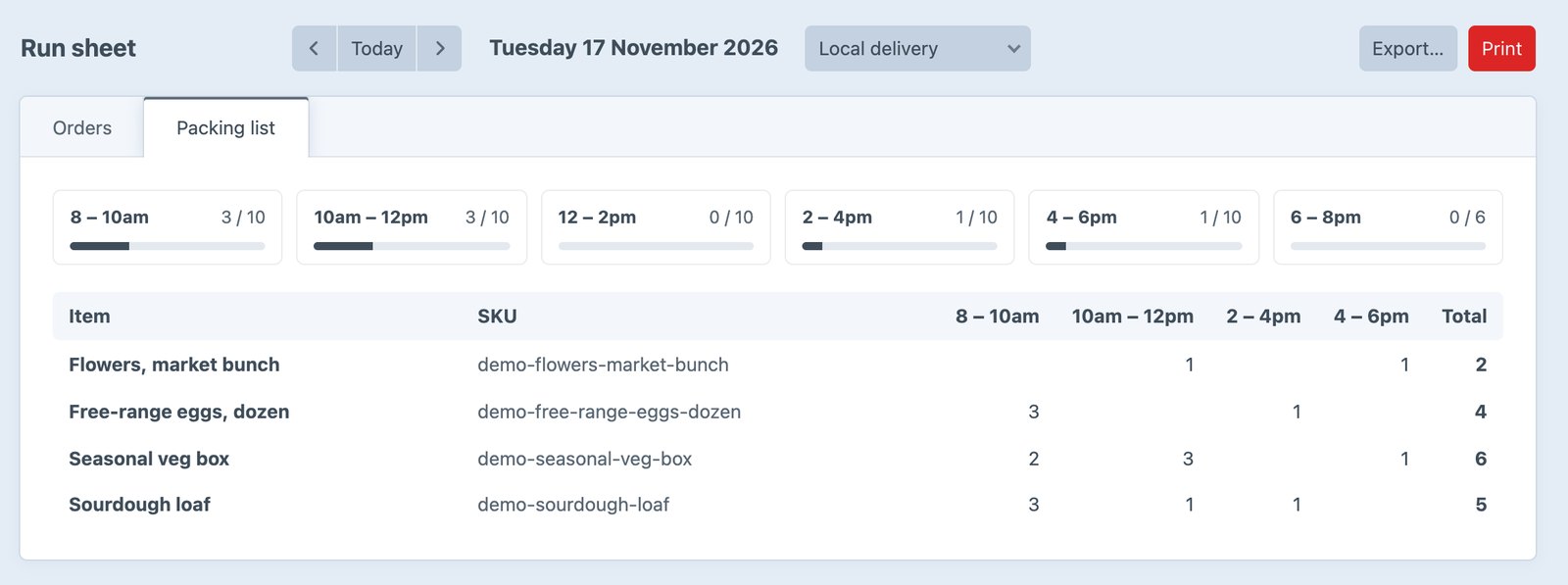
Print on this tab prints the packing list.
Export
Export… downloads a CSV for a day or a date range, such as next week:
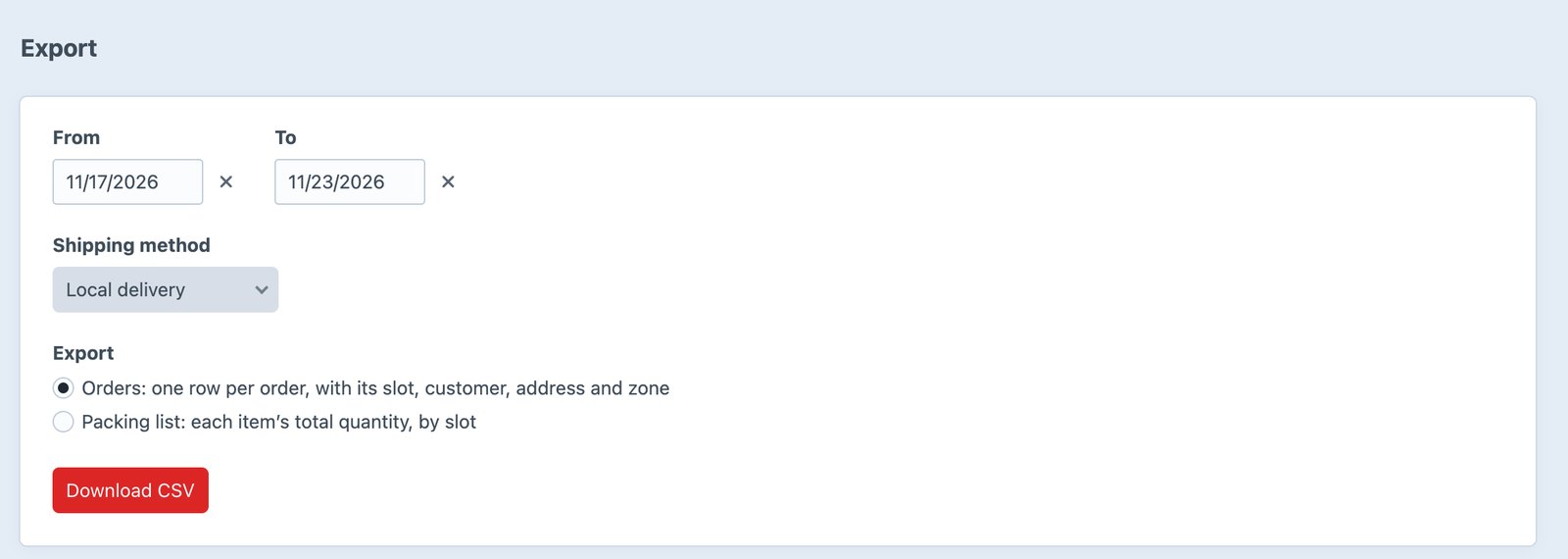
- Orders: Date, Slot, Order, Customer, Email, Phone, Address, Suburb, Postcode, Zone, Items, Total, Shipping method, and Note when it’s set. Import it into a routing app or a spreadsheet.
- Packing list: each item with its SKU, its quantity in each slot, and the total.
Values that start with =, +, - or @, such as a name a customer typed, are prefixed with an apostrophe so spreadsheets don’t run them as formulas.
From the command line
The same exports, for scripts and scheduled jobs:
bash
php craft delivery-slots/export --from=tomorrow --output=deliveries.csv
php craft delivery-slots/export --from=2026-11-17 --to=2026-11-23 --type=packing| Option | Description |
|---|---|
--from | The first day: a date, today or tomorrow. Default: today |
--to | The last day. Default: the same as --from |
--method | A shipping method handle. Default: every method with slots |
--type | orders (default) or packing |
--output | The file to write. Without it, the CSV is printed |
Dashboard widget
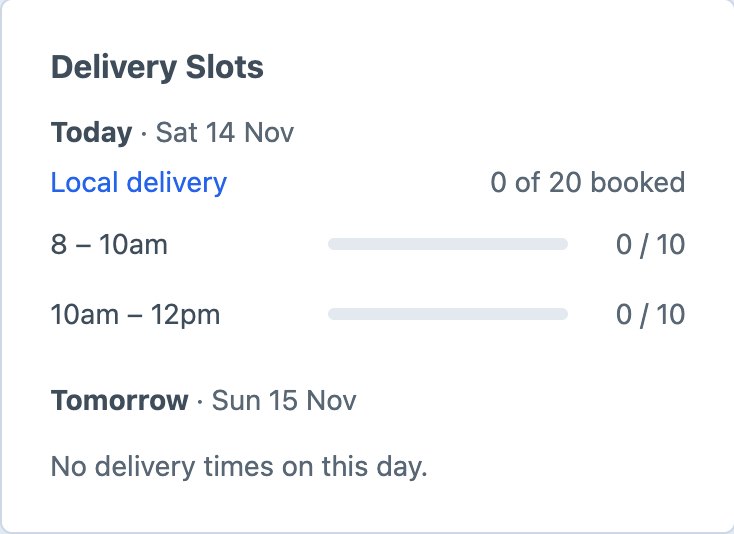
Add the Delivery Slots widget to the dashboard to see how full today’s and tomorrow’s slots are. Choose one shipping method in its settings, or show them all.
On the Orders page
In Commerce → Orders:
- Add the Delivery time column from the table’s column settings.
- Filter by Delivery date, such as Tomorrow or a date range, to find the orders for a day.
Who can see it
Users need the View the run sheet permission.