
Appearance
Orders and Emails
In the control panel
An order’s delivery time and zone show in the order’s details, under Delivery time and Zone.
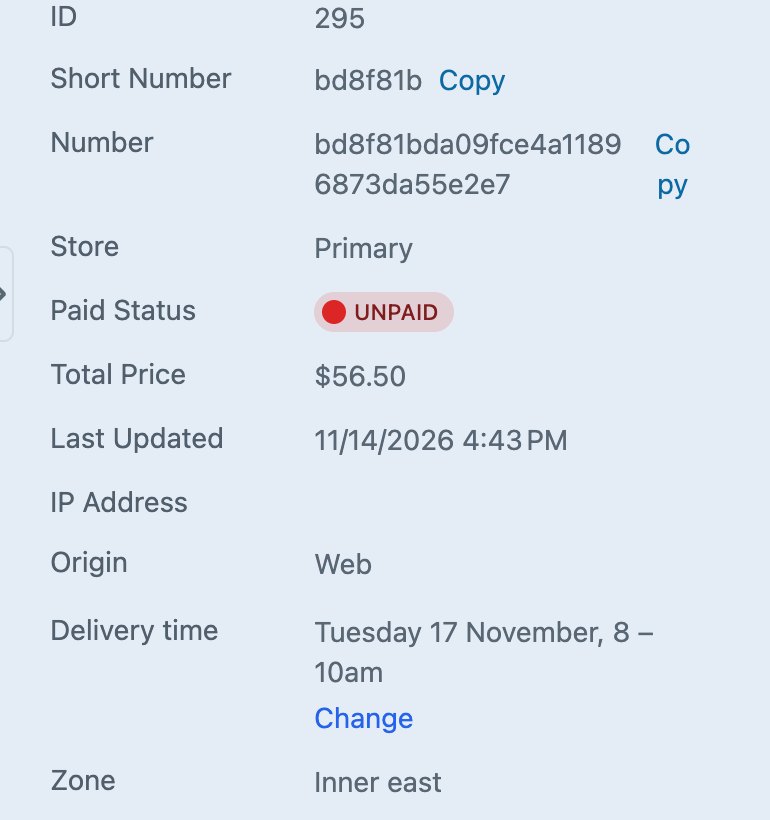
While a customer is still checking out, it shows as Delivery time (held).
Changing an order’s slot
When a customer calls to change their time, click Change under the delivery time. Pick a day with the arrows, then Move here next to the new time.
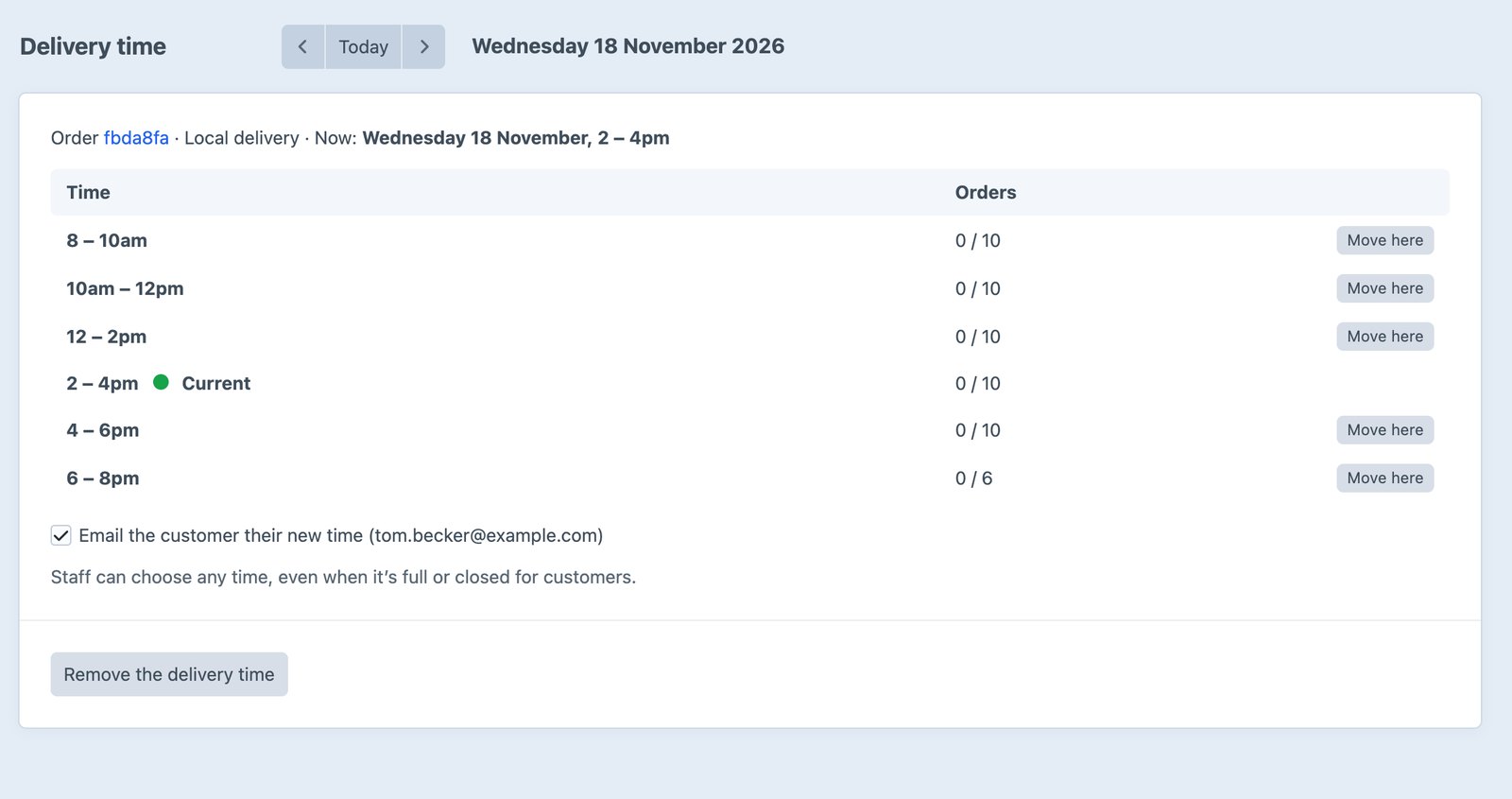
- Staff can choose any window that runs that day, even when it’s full or closed for customers.
- Remove the delivery time takes the order out of its slot.
- Orders without a slot, such as phone orders, show Choose a time instead.
- Email the customer their new time is ticked for completed orders. They get an email with the new time, the old one, the address and an Add to calendar link. Untick it to change the time quietly.
Staff need Commerce’s Edit orders permission.
The email
The built-in email is plain and works in every mail app. To send your own, make a site template and set slotChangedTemplate in the config file. It gets order, slot (the new time) and previousSlot (the old one, or null):
twig
{# templates/_emails/slot-changed.twig #}
<p>Hi {{ order.shippingAddress.fullName ?? 'there' }},</p>
<p>Your order {{ order.reference }} now arrives {{ slot.label }}.</p>
{% if previousSlot %}<p>It was {{ previousSlot.label }}.</p>{% endif %}
<p><a href="{{ slot.calendarUrl }}">Add to calendar</a></p>
Set its subject with slotChangedSubject, such as 'Green Grocer · order {reference} now arrives {slot}'.
The email is sent with Craft’s email settings (Settings → Email), from the system email address and sender name, so your shop’s name and address are on it.
In templates
order.deliverySlot is the order’s slot, or null. It works on carts, completed orders, order pages and Commerce emails.
twig
{% if order.deliverySlot %}
  <p>
    <strong>{{ order.shippingMethod.name }}:</strong>
    {{ order.deliverySlot.label }}
  </p>
{% endif %}
This outputs “Local delivery: Tuesday 17 November, 8 – 10am”.
| Property | Example | Description |
|---|---|---|
label | Tuesday 17 November, 8 – 10am | The day and times |
timeLabel | 8 – 10am | The times only |
startDate | When the slot starts, for your own formatting: order.deliverySlot.startDate|date('D j M, g:ia') | |
endDate | When it ends | |
zone | The zone entry, or null | |
fee | 4 | The slot’s fee |
isBooked | true once the order is complete | |
calendarUrl | A link that downloads the slot as a calendar event (.ics), for completed orders | |
value | 2026-11-17@08:00 | The value posted as deliverySlot |
The slot only counts for the order’s current shipping method. If the method changes, order.deliverySlot is null until a new slot is chosen.
Order emails
Commerce emails are Twig templates with an order variable, so add the slot to yours. See the order confirmation email example.
Order queries
To find orders for a day in your own templates or modules, use the run sheet, or query the plugin’s service from PHP:
php
use suprim\deliveryslots\Plugin as DeliverySlots;

$slots = DeliverySlots::getInstance()->slots->getBookedOn('2026-11-17');
foreach ($slots as $slot) {
    echo $slot->orderId . ': ' . $slot->getTimeLabel() . "\n";
}