
Appearance
Delivery Zones
With Geo Maps installed, a schedule can have zones: areas drawn on a map, each with its own delivery days, order limit and fee.
Zones need Geo Maps 1.4 or later. The free Lite edition is enough.
1. Draw the zones
- Create a section for them, such as Delivery Zones (a channel, without URLs).
- Give its entry type a Geo Maps field with Enable Drawing & GeoJSON turned on.
- Add an entry per zone, such as “Inner east”, and draw its area with the polygon tool, or upload a
.geojsonfile.
Any entry with a drawn area can be a zone, so a store’s own delivery area works too.
2. Add them to the schedule
In Delivery Slots → Schedules, open the shipping method and add rows under Zones:
| Column | Description |
|---|---|
| Zone | The entry. Zones are listed as “Section: Title” |
| Mon … Sun | The days you deliver there. Leave them all unticked to use the schedule’s days |
| Orders per slot | A limit for this zone, on top of the slot’s own limit. Leave it blank for none |
| Slot fee | Added to the order’s shipping when a slot is chosen. Leave it blank for none |
For example:
| Zone | Days | Orders per slot | Fee |
|---|---|---|---|
| Inner east | (schedule’s days) | ||
| Adelaide CBD | Mon, Wed, Fri | 6 | |
| Adelaide Hills | Thu, Sat | 4 | $4 |
How it works
- The first zone that contains the address is used, in the order of the table. Drag rows to reorder them, such as a small inner zone above a larger one around it.
- Addresses outside every zone get no slots, and the shipping method isn’t offered to them. Customers can’t order delivery you don’t make. Pickup methods usually have no zones, so they’re still offered.
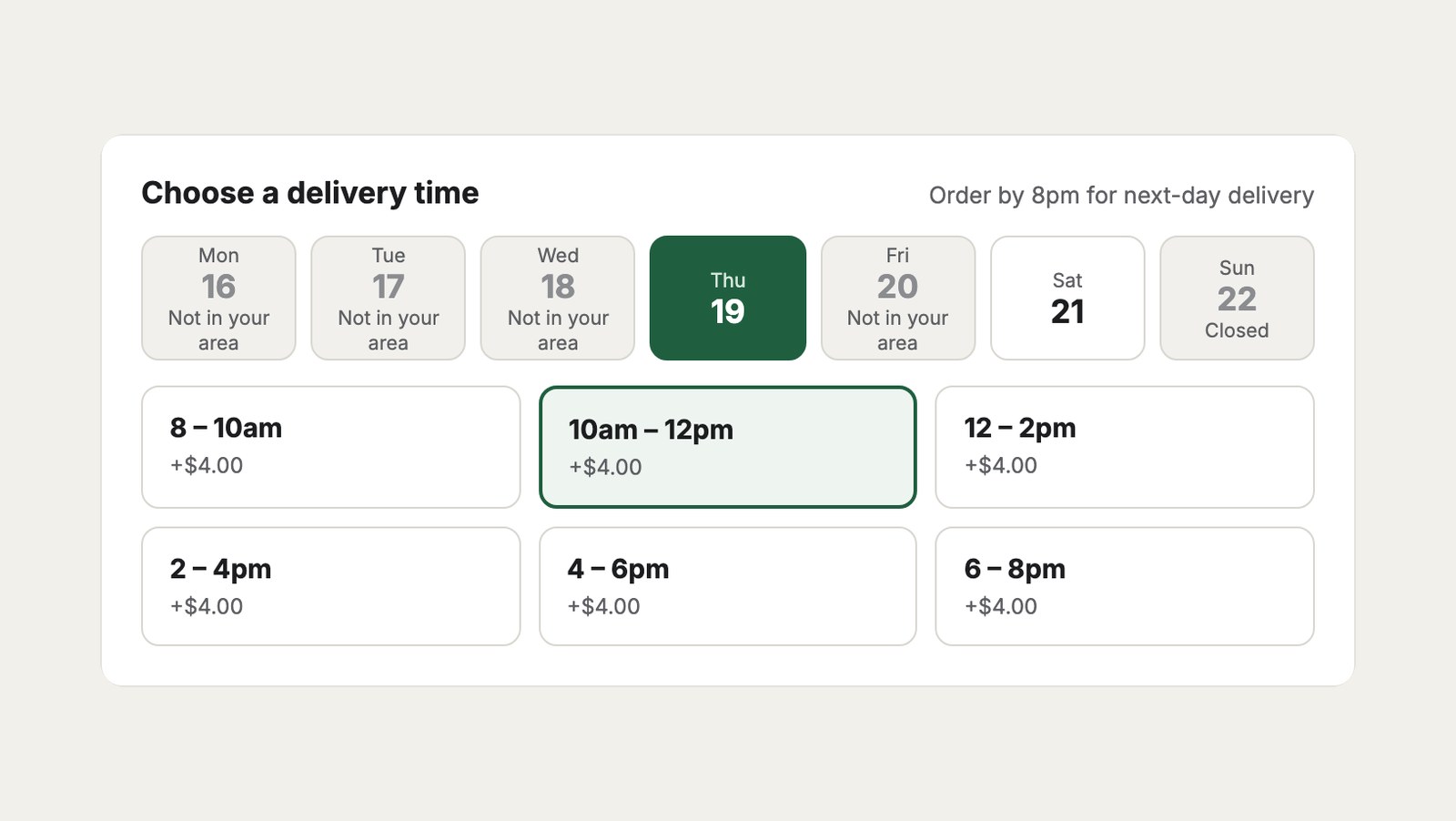
- Days the zone doesn’t deliver show as Not in your area.
- Orders per slot counts only orders in the zone. With 4 for the Hills and 10 for the slot, the slot takes ten orders, at most four of them from the Hills.
- The fee is added as a shipping adjustment called Delivery time, before tax, so it’s taxed like the rest of the shipping. Show it with
slot.feein the picker. - Addresses use the shipping address, or the estimated shipping address before checkout. Addresses with coordinates use them; others are looked up with Geo Maps’ map service.
Prices by zone
Slot fees are for extra charges on top of the shipping price. To price delivery by zone or distance, use Geo Maps Pro’s Delivery address is in zone and Delivery distance conditions on your Commerce shipping rules; see Delivery Zones for Commerce in the Geo Maps docs. Both work together: shipping rules set the price, zones set the days.
Without Geo Maps
The Zones table only appears when Geo Maps is installed. If Geo Maps is removed later, saved zones are kept but not used, so every address gets the schedule’s slots.